الاستيراد خطوة بخطوة
Each step of Import data, from dropping the file to the results, with the column mapping, the dry run, the questions, the rows to fix and the cash in the drawer.
Open Import data at the bottom of the sidebar. The steps run down the side in order, each with what it needs (Needs classes, Needs customers and packages) and, once done, how many went in. Reloading the page keeps you on Import data, on the step you were on.
Every step works the same way. Customer packages adds one more part: a few questions about the whole file.
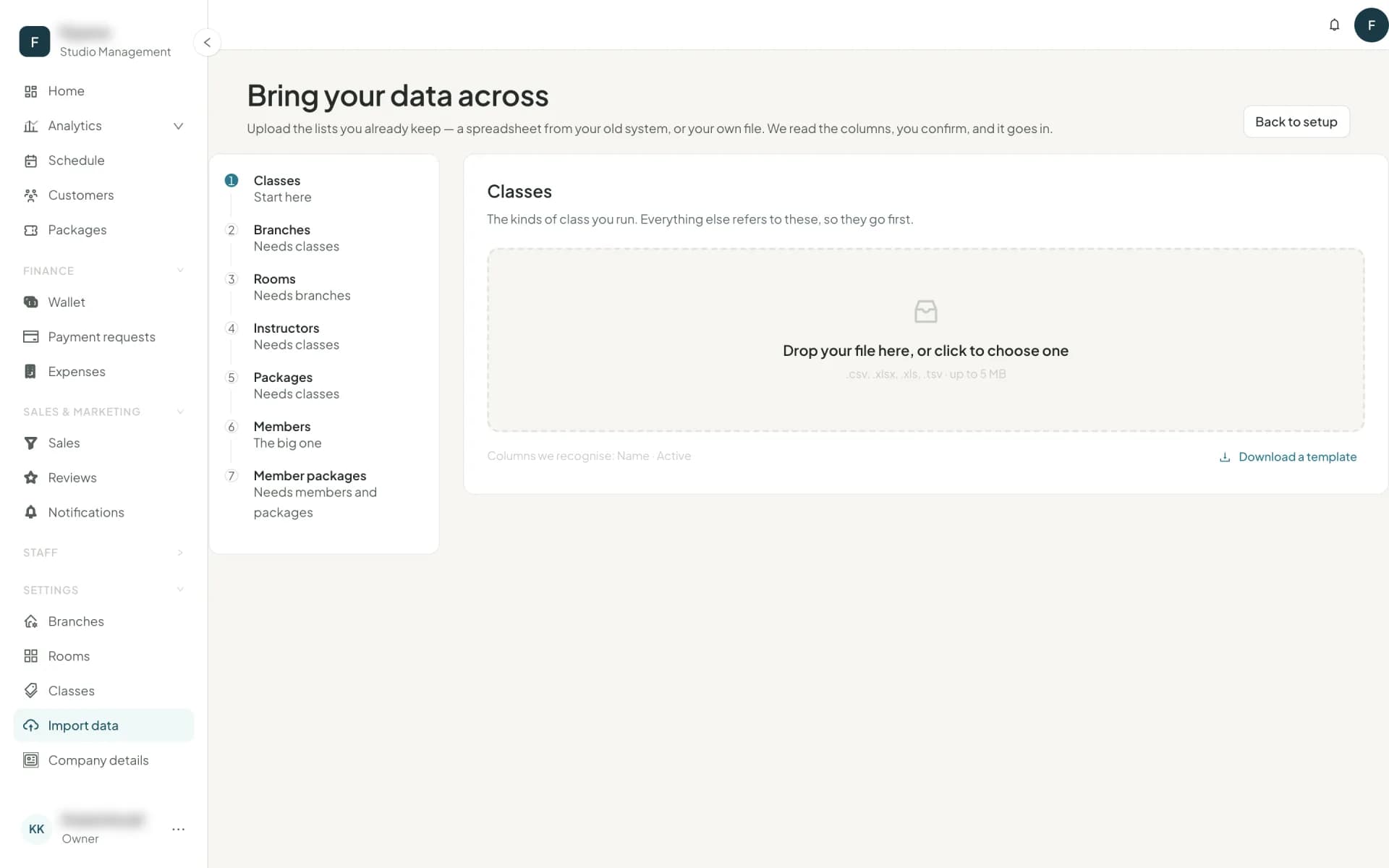
1. Drop the file
Drop your file on the step, or click to choose one. Under the drop zone, Columns we recognise lists the step's columns, and Download a template gives you a sheet headed with them.
When the file is a workbook, check the sheet name next to the file. The step opens on the sheet named for it (Customers, Clients, العملاء). If it picked the wrong one, choose the right sheet there.
Two warnings can show up here:
- Import your classes first. The step needs a list your account doesn't have yet, and a button takes you to that step.
- This looks like your Customers list. The columns match another step better than this one. Import it as Customers switches step, before fifty packages get named after people.
2. Map the columns
The mapping table has one line per field: Field, Your column, and the First value from your file, so you can see the guess is right.
- Fields Owelz matched on its own say Matched automatically.
- A field marked as required needs a column. A pair such as Customer email or Customer phone needs one of the two.
- Anything you don't need, leave as Not imported.
- Not read from your file names the columns that will be ignored, such as Gender, Notes, Status, Amount owed or Hourly rate. Check it: a column you need could be in that list under a name Owelz didn't recognise. Map it by hand.
The headers each step recognises are listed in prepare your file.
3. Read the preview
Before anything is written, Owelz checks the whole file against your account. For customers, customer packages, attendance and expenses, this is a dry run on the server: every row goes through the same checks the import will make, and nothing is saved. Checking each row against your account… shows while it runs.
Every row gets one status:
| Status | Means |
|---|---|
| Ready | It will be imported. |
| Needs attention | Something must be fixed first, and the row says what. For example, that no package has the name it gives: import that package first, or correct the spelling. |
| Repeated in file | The same row appears earlier in the file, on the line it names. |
| Already here | It is in your account already, and will not be doubled. |
The line above the preview adds up the ready rows, so you can hold them against your old system before you import. For example: 636 sales · EGP 1,856,950 · Mar 2026 → Oct 2026. See check your totals.
Download the rows to fix
Download the rows to fix gives you a sheet of just the rows that need attention: your own columns, in your own order, with a Problem column saying what is wrong with each.
Correct them in that sheet and import it on the same step afterwards. You don't need to hold back: the ready rows go in now, and the fixed ones join them later. A row that was already imported is recognised and not doubled.
4. Answer the questions
Customer packages asks about the whole file, once, when the file doesn't say:
- Branch these sales were made at. When sales have no branch and you have more than one: 226 sales have no branch. Choose one, and those sales are recorded there.
- How were these paid? When sales don't say how they were paid. Cash is filled in; change it to Card, Bank transfer or Wallet if that is what they were.
- What did customers pay for these packages? When sales have no amount. One line per package, with today's price filled in. Change each to what customers actually paid back then.
A blank cell in a column you do have counts as doesn't say: those rows get the answer too.
5. Import
Press Import. The button says how many rows will go in. A progress line counts through: Imported 240 of 636…
Stop halts it. The rows imported so far stay, and the rest are not imported. Import the same file again later and only the missing rows go in.
6. Read the results
The result says what happened, in numbers: 636 imported · 3 refused. Below it, the reasons are grouped, each with how many rows it covers and Show these rows, which filters the table to them. The table filters by Imported, Imported with warning, Refused and Skipped.
Imported with warning means the row went in but something about it was set aside, and the row says what. For example:
- a customer who shares a family email, or whose email isn't a real address, comes in without the email;
- a visit whose instructor is unknown (often one refused for having no email) comes in without the instructor.
Then Next takes you to the following step, and Import another file stays on this one.
After the Instructors step, a reminder says the instructors start with pay not set, with a link to the Instructors page. Each also shows Not invited yet until you invite them.
Cash in the drawer
Imports never move the cash box: the cash in old sales and expenses was counted long ago. Once your history is in, the finish screen on Import data asks for Cash in the drawer now.
- Count the cash in your drawer.
- Enter it under Cash in the drawer and press Set.
It is set once. From then on the Wallet keeps the cash box, and the ledger shows the amount as a row noted Opening cash, which is never revenue. Do it last, after your totals check out, because undoing an import does not change it.
Next
أسئلة شائعة
- Is anything written while I look at the preview?
- No. The preview checks every row against your account, and for customers, customer packages, attendance and expenses it runs the same checks as the import on the server. Nothing is written until you press Import.
- What do I do with the rows that need attention?
- Download them with Download the rows to fix. You get your own columns back with a Problem column. Correct them, then import that file on the same step. The ready rows don't wait for them.
- Can I stop an import halfway?
- Yes. Press Stop. The rows imported so far stay, and the rest are not imported. Import the same file again later and only the missing rows go in.
آخر تحديث 27 أكتوبر 2026