الأدوار والصلاحيات
One role per admin, one checklist per role. Build a front desk that can book and check in without ever seeing the wallet, payroll or your margins.
Staff → Roles & access is where you decide who sees what. The model is deliberately small: one role per admin, one checklist per role.
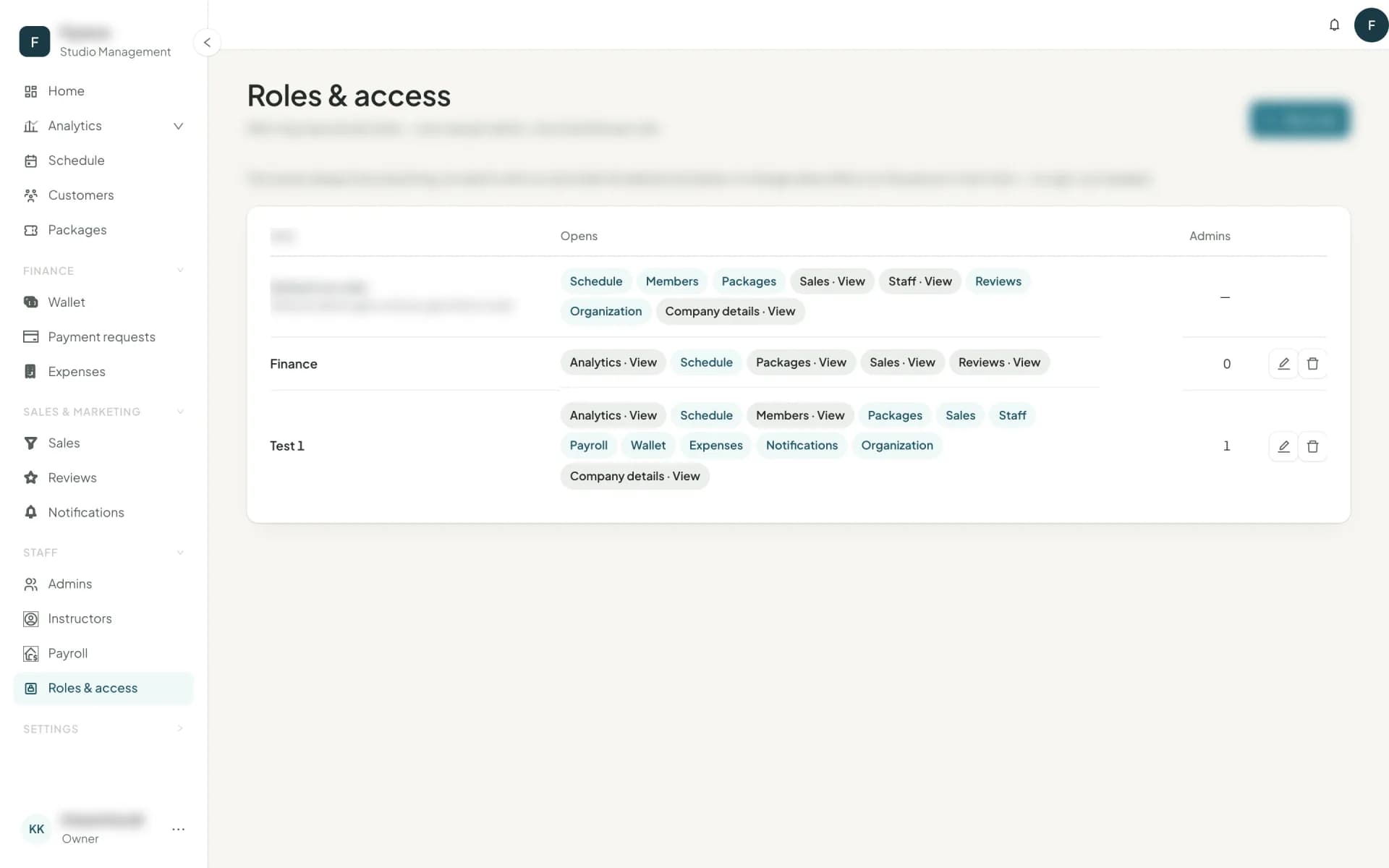
View and Manage
Every module has two levels:
- View — can open the page and read it.
- Manage — can change things. Manage always includes View, which is why turning Manage on locks View on.
| Module | View | Manage |
|---|---|---|
| Analytics | Home and every report — without instructor pay and profit, which need Payroll — and the Weekly Revenue Brief's actions | Build the weekly brief and tick its actions off |
| Schedule | Sessions and bookings | Create, edit, book, check in, waiting lists |
| Customers | Customer records and profiles | Edit, purchase, notes |
| Packages | The catalogue | Create, publish, price |
| Sales | Their own leads | Everyone's leads, assigning, importing |
| Staff | The roster | Instructors and admins, rates and salaries included |
| Payroll | Payslips, and instructor cost, margin and profit in the reports | Approve and pay |
| Wallet | Every transaction and the cash box | Settlements |
| Expenses | The expense list and summary | Log, void, categories |
| Promotions | Promotions, their results and referrals | Build, start, change, pause and end promotions; Bring a friend |
| Reviews | The inbox | Reply |
| Notifications | Sent messages and the delivery log | Writing and sending messages in the Communication center |
| Organization | The branch, room and class lists other pages pick from | The Branches, Rooms and Classes pages; lead and payment sources |
| Company details | Company details and the studio's page in the customers app | Change them, the logo and app payments; Import data |
| Roles & access | This page | Create roles and give admins a role |
| Activity log | Who did what, and when, across the studio | — (view only) |
| Consultant report | The Weekly Revenue Brief's full report: verdict, studio health, costs, margins and instructor pay | — (view only) |
Payment requests — the transfers customers send from the app — sit with the wallet: Wallet → View opens them.
The Activity log
Studio setup → Activity log is the studio's audit trail: every important action — sales, refunds, vouchers, bookings and edits, pay plans and payroll, staff and roles, studio settings, sign-ins — with who did it, when, what it was about and at which branch. Filter by dates, person, category (Money, Classes, Packages & promotions, Staff & access, Studio settings), branch or a name, open an entry to see what changed from what to what, and Export CSV for your accountant. Nothing in it can be edited or deleted, by anyone.
The whole log is for the owner and roles with Activity log → View; the Manager template includes it, and you can tick it on any other role that should audit. Pay entries — pay plans, payroll periods, payslips — show only to people with Payroll → View. A single thing's history (a customer's History tab, a voucher campaign's, a package's) is open to whoever can see that thing.
Start from a template
New role, then Start from one of four templates and tick anything else:
- Front desk — manages the schedule and customers; sees packages, their own leads and reviews. Books, checks in, sells. No money pages.
- Manager — runs the studio day to day: manages everything including staff, payroll, wallet, expenses, notifications and organization, and can see Company details and the Activity log. It cannot change Company details, run promotions or give out roles.
- Finance — manages the wallet, expenses and payroll; sees analytics, customers, packages and staff.
- Sales — manages everyone's leads and customers; sees packages, the schedule and analytics.
An admin with no role holds Default (no role): manages the schedule, customers, packages, reviews and organization; sees their own leads, staff and Company details. No analytics, no money.
Who can change whom
- Giving someone a role needs Roles & access → Manage. An admin who manages staff can edit a person but not their role — not even their own.
- Nobody hands out more than they hold: a role you assign must contain only what you can do yourself.
- An admin can edit or remove another admin only when that admin can do nothing the first cannot. Nobody but the owner can touch the owner's account.
- Sign-in details — the email an admin signs in with and their password — are changed only by their holder or the owner.
- A role that someone holds cannot be deleted; Owelz tells you how many admins to move first.
What a hidden page looks like
A page a role does not open is absent, not greyed out. It disappears from the sidebar, and typing its address lands on Not found. Nothing flashes on screen before permissions load, so a front-desk admin never catches a glimpse of a number they should not see.
A role change takes effect on the person's next click — no sign-out, no waiting.
Next
If you are moving from another system, bring your data across before you start typing: moving your studio to Owelz →
أسئلة شائعة
- Does a permission change require the admin to sign out?
- No. A change takes effect on that person's next click. Owelz re-reads their permissions on every navigation.
- What does an admin with no role get?
- The default set — the front-desk essentials. You can see exactly what is in it on the Roles and access page, listed as "Default (no role)".
آخر تحديث 14 نوفمبر 2026