The customers app
What customers can do for themselves in the Owelz app on iPhone and Android — one Owelz account for every studio, booking with clash warnings, every package they hold, transfer payments, class ratings, injuries and invitations — and how each of those lands on your desk.
The customers app is the Owelz app for iPhone and Android, and it is the only place customers book. The links in their emails, such as an offer or a voucher, open a page that tells them to open the app.
One account, every studio
Customers sign in with their own Owelz account — an email and a password they choose. There is no per-studio username: the same sign-in works at every studio on Owelz they belong to, and Forgot your password? sends one reset link to that email, which opens owelz.com and then the app. An account made by signing up is asked to confirm its email: Owelz emails a link, and the app shows a Confirm your email notice with Send it again until it is opened. A customer who sets their password from a studio's invitation has nothing to confirm: setting it activates the account.
They become your customer in one of these ways:
- Your sign-up link — it opens owelz.com, then the app: Create account joins your studio at once. See the sign-up link.
- The desk added them first. Adding them with an email emails them an invitation with a link to set their password, which also activates the account. They then open the Owelz app, and it shows them the record you made — packages and classes left included, nothing to re-enter. That is why the email on a desk-made profile matters. See adding customers.
- There is no directory to find you in. The app has no list or search of studios: someone who signs up without your link is told to ask their studio for its Owelz link. So share your link — on Instagram, WhatsApp, at the desk.
A customer of several studios switches between them with Switch studio; the app remembers the last one. Inside a studio, everything — bookings, packages, notifications, prices in that studio's currency — is that studio's, under that studio's rules.
Your studio's page in the app
Your studio's page lives in the app, for customers who are signed in — it is not a public page on owelz.com. There they see your description, photos, opening hours, branches and how to reach you, your schedule, your packages and prices, your refund policy and your reviews. You fill it in from Settings → Company details in the dashboard; your logo is the one on the Studio logo card.
My account holds their name, email, phone and password. A change there reaches every studio they belong to — the profile in your dashboard updates with it, which is why a linked customer's email is read-only for you. They can also delete their account: their Owelz sign-in and photo go and they are signed out everywhere; their upcoming bookings and waiting-list places are cancelled, and a transfer still waiting for your review is withdrawn. Your studio keeps its records of them — packages, payments and classes — for your accounts. Signing up again with the same email links them back. My account also has Rate the app.
All my studios
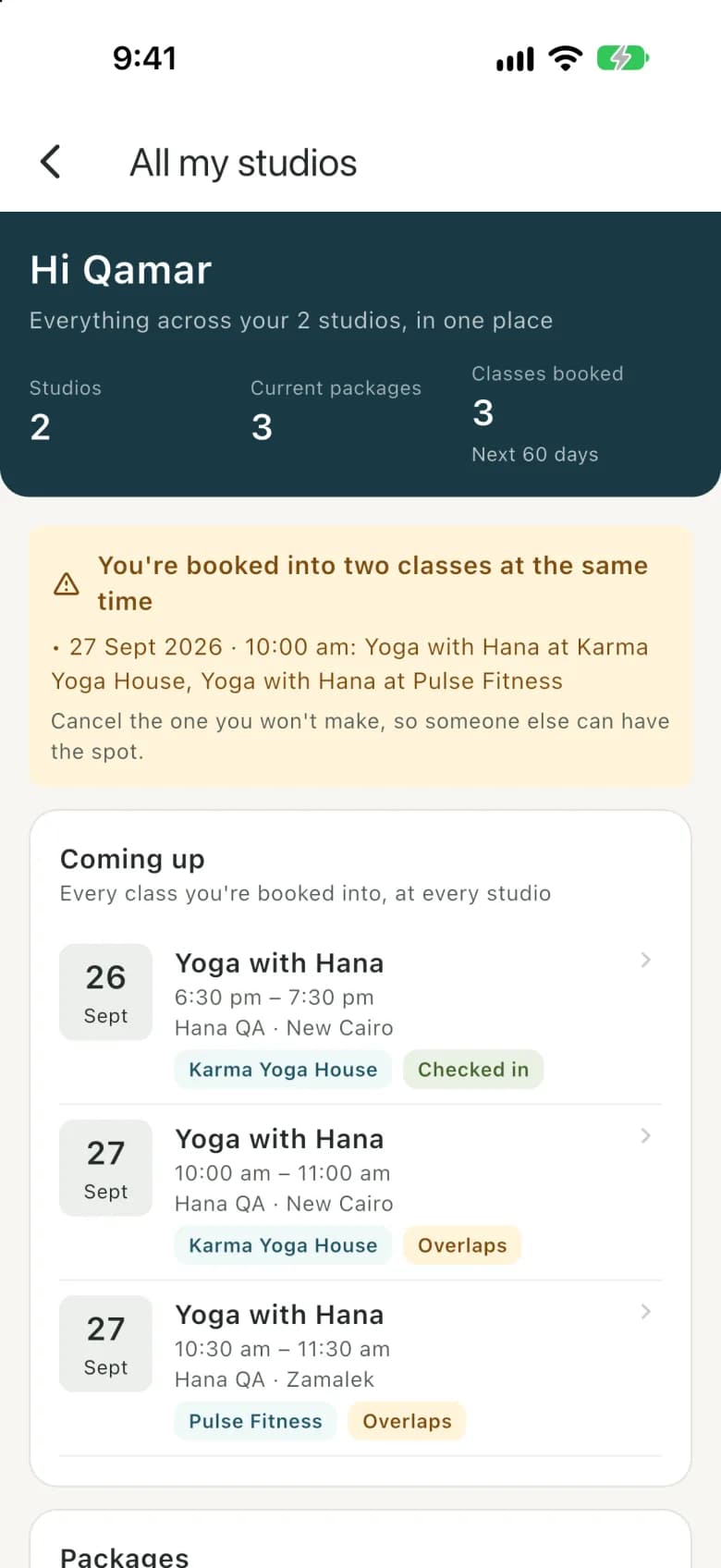
Signing in lands on All my studios: one page across every studio they belong to.
- Coming up — every class they are booked into, at every studio, for the next 60 days, and any waiting lists they are on.
- Packages — every package and payment at every studio: status (Active, Frozen, Not started, Expired), sessions left, end date, and transfers waiting for a studio to confirm or recently not accepted, with the reason and Try again.
- Your studios — each with its packages, classes booked, unread notifications and next class. A studio that has blocked them shows as an empty card with a way to contact it; opening it shows their history there, read-only.
- A clash warning — You're booked into two classes at the same time — when two bookings overlap, at one studio or across several. Each studio sees only its own classes, so this is the only place a double booking across studios can be caught.
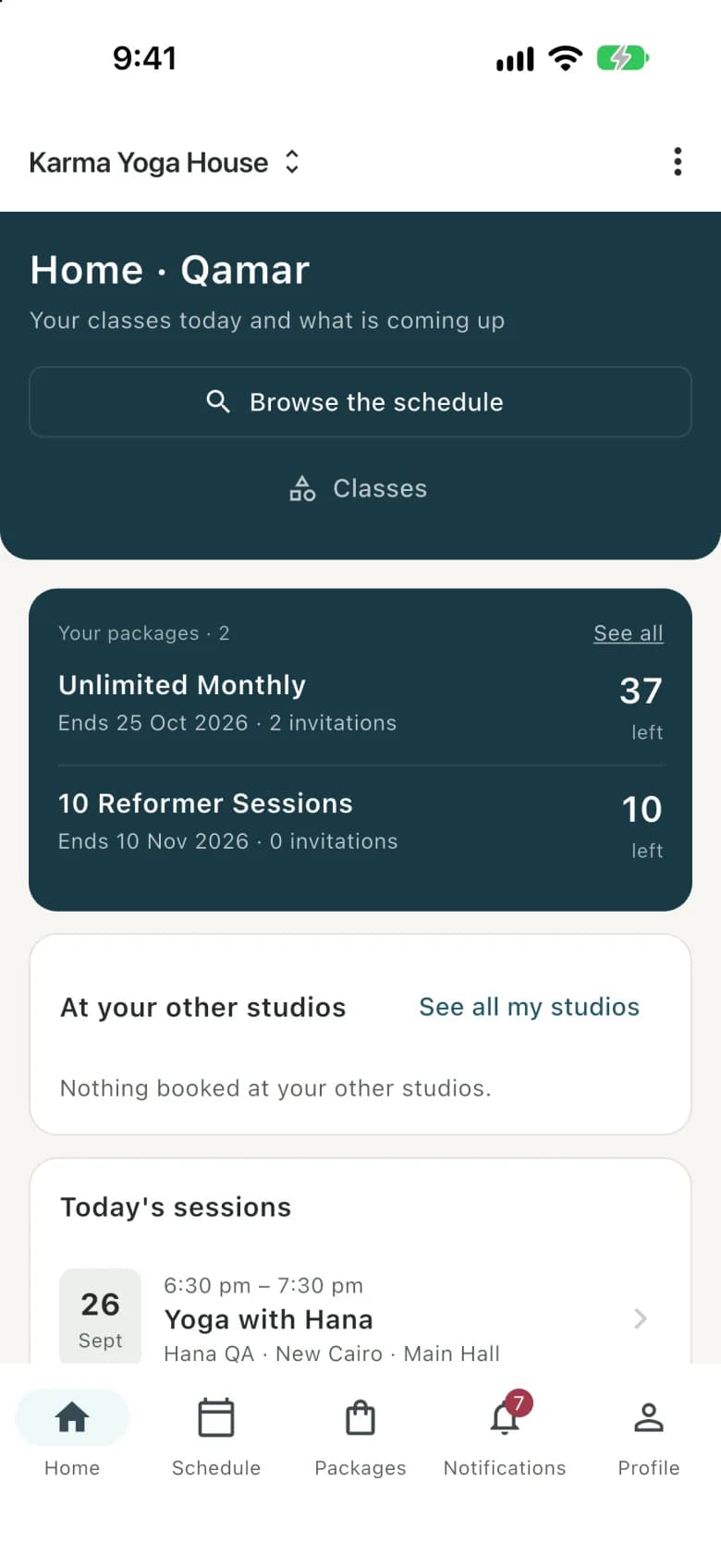
It sits at the top of the studio switcher; on a studio's Home, a customer of two or more studios also gets an At your other studios card.
What they can do
| They do this | It lands here |
|---|---|
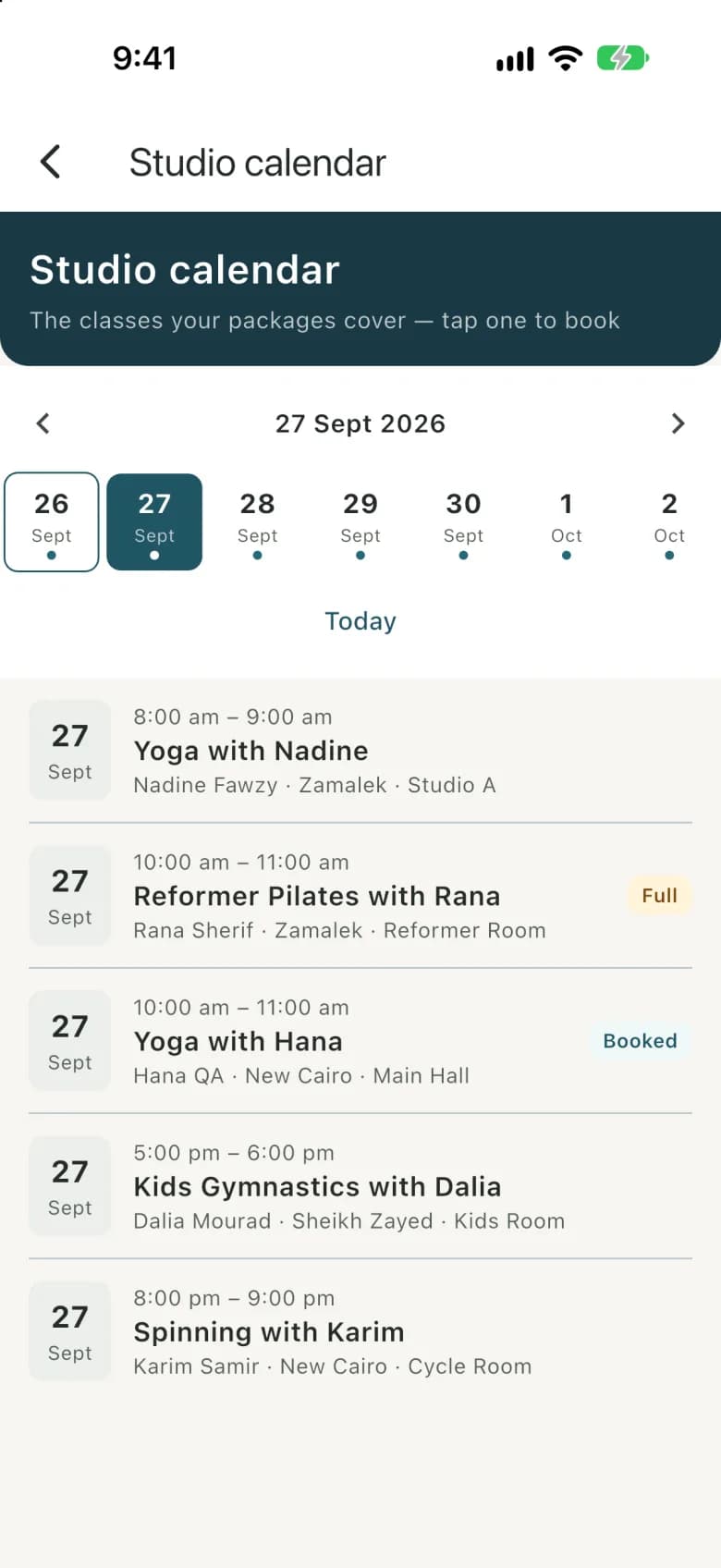
| Book a class | The session's booked list, instantly. If they are already booked into something at the same time — here or at another studio — the app asks first: You're already booked at this time, with Book anyway. |
| Cancel | The booking is cancelled and the class goes back on their package. Inside your cancellation cutoff the app no longer offers it — they have to ask the desk. On a class you marked Customers can't cancel once booked, they see a notice before booking and no Cancel after; see no cancel once booked. |
| Check in | From My calendar, from an hour before the class until it ends. Or they show their customer code at the desk. |
| Join a full class | The waiting list. When a spot opens everyone waiting is told at once, and it goes to whoever takes it first. They can leave the list any time. |
| See their packages | Home shows every package they hold at your studio — sessions left, end date or when it starts, frozen or not, guest passes — not just one. Packages → My packages has the full detail and the classes each one covers. |
| Freeze or unfreeze a package | Within the package's own freeze allowance, from their profile. The end date moves by the freeze length. See freezing and adjusting. |
| Buy a package online | Where you have switched on online payment (studios in Egypt), they pay on Paymob's payment page by card, or by Apple Pay on an iPhone when you have added your Apple Pay integration ID and Paymob has switched Apple Pay on for your account. The money goes to your Paymob account and the package is added once Paymob confirms it, with nothing for you to review; it shows in Payment requests as Paid online. Refunds are made in your Paymob dashboard. |
| Buy a package by transfer | Payment requests, awaiting your confirmation. The package activates the moment you confirm; if you do not accept it, they see your reason. |
| Invite a friend | From a class in the studio calendar: the friend's name and email. The friend gets an Owelz account and a free spot in that class, one guest pass is used, and they arrive in your leads with the source Referral. |
| Read about a class | Each class shows your description, pictures and its customer rating — see class families. |
| Rate a class | After a class has ended they are asked to rate the instructor, the class, or both — and now and then the studio. It lands in the reviews inbox. |
| Report an injury | The Injuries tab, marked as reported by the customer. They can update it and mark it healed. |
| Turn off offers | Recorded per studio — promotion offers skip them. Studio announcements (messages from the Communication center), booking confirmations and reminders always arrive. |
| Turn off announcement emails | The Announcement emails switch in notification settings, per studio: your messages stop reaching them by email, and still arrive in the app and as notifications. Turning it back on brings the emails back. |
| Turn off offer and announcement notifications | The Offers and announcements switch in My account covers the whole account: no studio's offers or announcements arrive as phone notifications. They still appear in the app, and messages about bookings, cancellations, waiting lists and payments always arrive. |
| Unsubscribe from announcement emails | From the link at the foot of any announcement email, per studio: the same choice as the Announcement emails switch, and the switch shows it. The same page lets them get the emails again. |
The studio calendar, and Book this week on Home, show every class at your studio, the same list as your schedule, whether or not their packages cover it. Booking a class none of their packages covers takes them to Buy a package. Semi-private classes show only to their circle. A private session shows only to its student, the customer the studio chose for it, who books it with a private package like any other class. Guest passes can't be used for private sessions. Days and times are on your studio's clock; when a customer's phone is set to another time zone, a small note such as Cairo time says so. Classes that have started stay on the calendar, marked as started, rather than disappearing.
When their package starts
A package that has not started shows when it will instead of an end date — Starts at your first booking, or on 1 Dec at the latest, or Starts on 1 Nov — and packages for sale say the same, so customers know before they buy. Three days before a package starts on its own they get a reminder: "Your Reformer 10 starts on 4 Oct". Once it starts, its end date appears. See when a package starts.
When the studio is closed
While a studio closure is coming up or under way, the app shows a banner — Closed 1–14 Aug for maintenance · your packages were extended by 14 days — and each package shows its new end date and the closure that moved it. Customers are told by message too, with their packages' new dates, and a customer booked into a class on those days is told it is cancelled and back in their package. Closed days cannot be booked and their waiting lists cannot be joined. Your note on the closure is never shown to customers.
Reviews from their side
A review is a star rating, up to three tags and an optional note. The stars and tags feed the public rating; the note is private — your studio reads it, and the instructor reads a note about them. Their reviews sit under My reviews on their profile, where they can edit one for 7 days or delete it, and where your reply appears — only they see it.
Notifications reach them here
Booking confirmations, session reminders, "your package starts soon", "the studio is closed", "your package is running low", "your package is about to expire", a spot opening on a waiting list, payment confirmed or not accepted, and the messages you send them. They arrive in the app's inbox, as push notifications on the phone app, and by email, depending on what you have switched on. Customers choose the language their messages arrive in. See notifications.
What they cannot do
Customers cannot change how many classes they have left or their dates, freeze beyond the package's allowance, see other customers, book past your cutoffs, cancel inside your cancellation cutoff, or cancel a class you marked as no cancel once booked. Every one of those is a desk action — which is the point of the cutoffs: the routine runs itself, the exceptions come to you.
Common questions
- Do customers have to use the app?
- No. Everything in the app can be done by staff from the dashboard. The app exists to take routine work off the desk, not to replace it.
- How do customers sign in?
- With their own Owelz account: an email and a password they choose. One account works at every studio on Owelz that they belong to. The desk never sets a customer's password.
- How do customers pay from the app?
- Two ways, each only if you switch it on. Online, for studios in Egypt, by card or Apple Pay through your studio's own Paymob account: the package is added as soon as Paymob confirms the payment. Or by transfer: they read your transfer details, pay, and upload a receipt, which arrives in Payment requests for you to confirm.
- Can a customer see what they do at other studios?
- The customer can — All my studios shows their packages, payments and bookings at every studio they belong to. Your studio cannot: you see only your own customer record.
Last updated 13 November 2026